
Configuring Microsoft Entra ID Sign-In for the Cigent Console
Document Type | Integration Guide |
Audience | Cigent administrators and Microsoft Entra ID administrators |
Purpose | Configure Microsoft Entra ID authentication for Cigent Console sign-in and role-based access |
Revision: 2
Overview
This guide describes how to configure Microsoft Entra ID (formerly Azure Active Directory) authentication for the Cigent Console. When configured, users can sign in to the console using their organizational Microsoft credentials.
Entra ID integration enables administrators to:
- Authenticate users using the organization's Microsoft identity provider.
- Control console access through Entra ID security groups.
- Assign Cigent Console roles based on group membership.
Prerequisites
Azure access | Access to the Microsoft Azure Portal and Microsoft Entra ID. |
Administrative permissions | Permission to view tenant information and manage groups. |
Console access | Administrative access to the Cigent Console. |
Required values | Tenant ID and one or more Entra ID Group Object IDs. |
Step 1 - Access Microsoft Entra ID
- Log in to the Microsoft Azure Portal.
- Navigate to Microsoft Entra ID.
Note: This area of the Azure Portal contains the tenant, users, and groups required for the integration. |
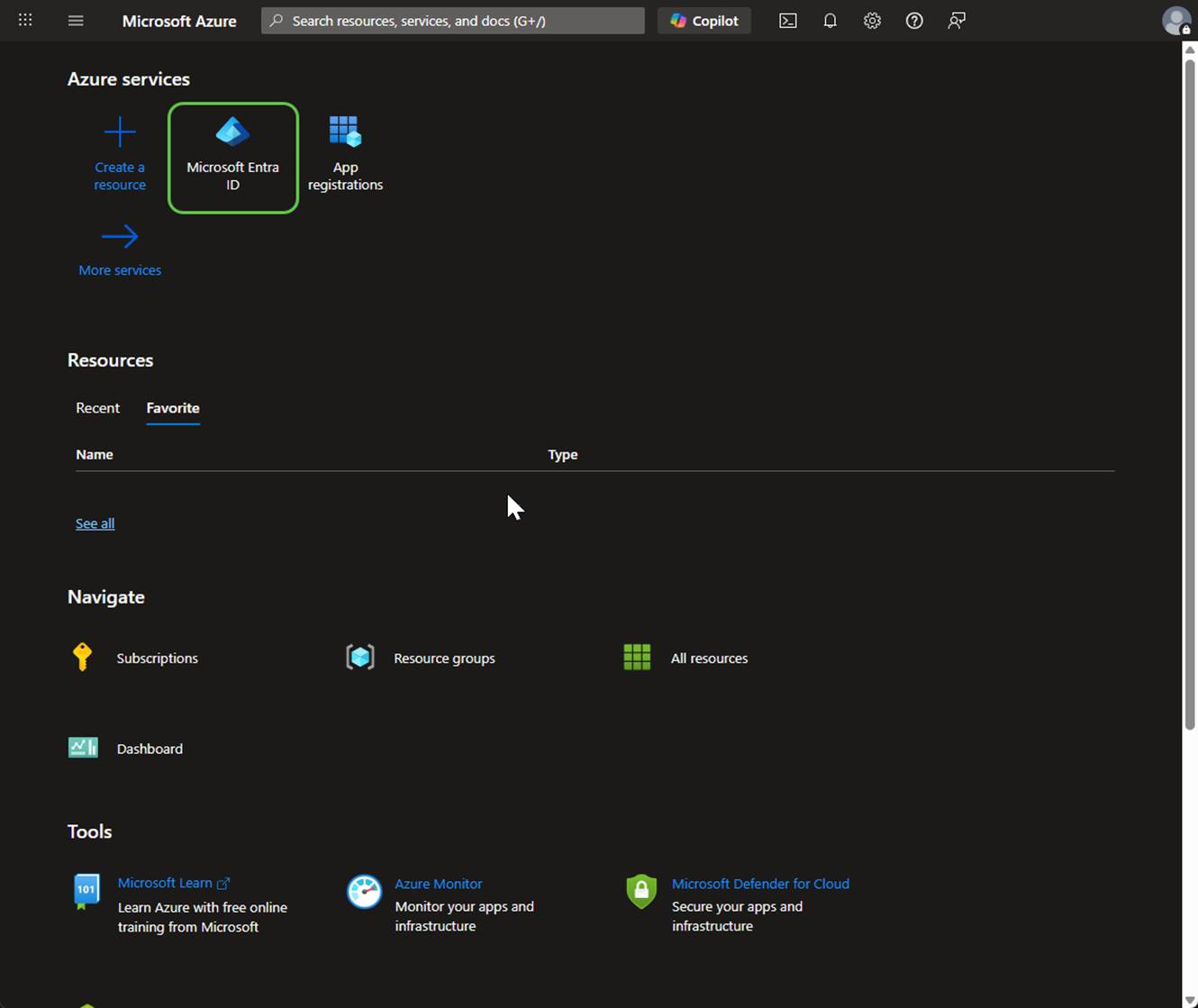
Figure 1. Microsoft Entra ID location in Azure Portal
Step 2 - Locate the Tenant ID
- Open the Overview page for Microsoft Entra ID.
- Locate the Tenant ID field.
- Copy and save the Tenant ID for use in the Cigent Console.
Note: The Tenant ID uniquely identifies the organization's Entra ID directory and is required by the Cigent Console integration. |
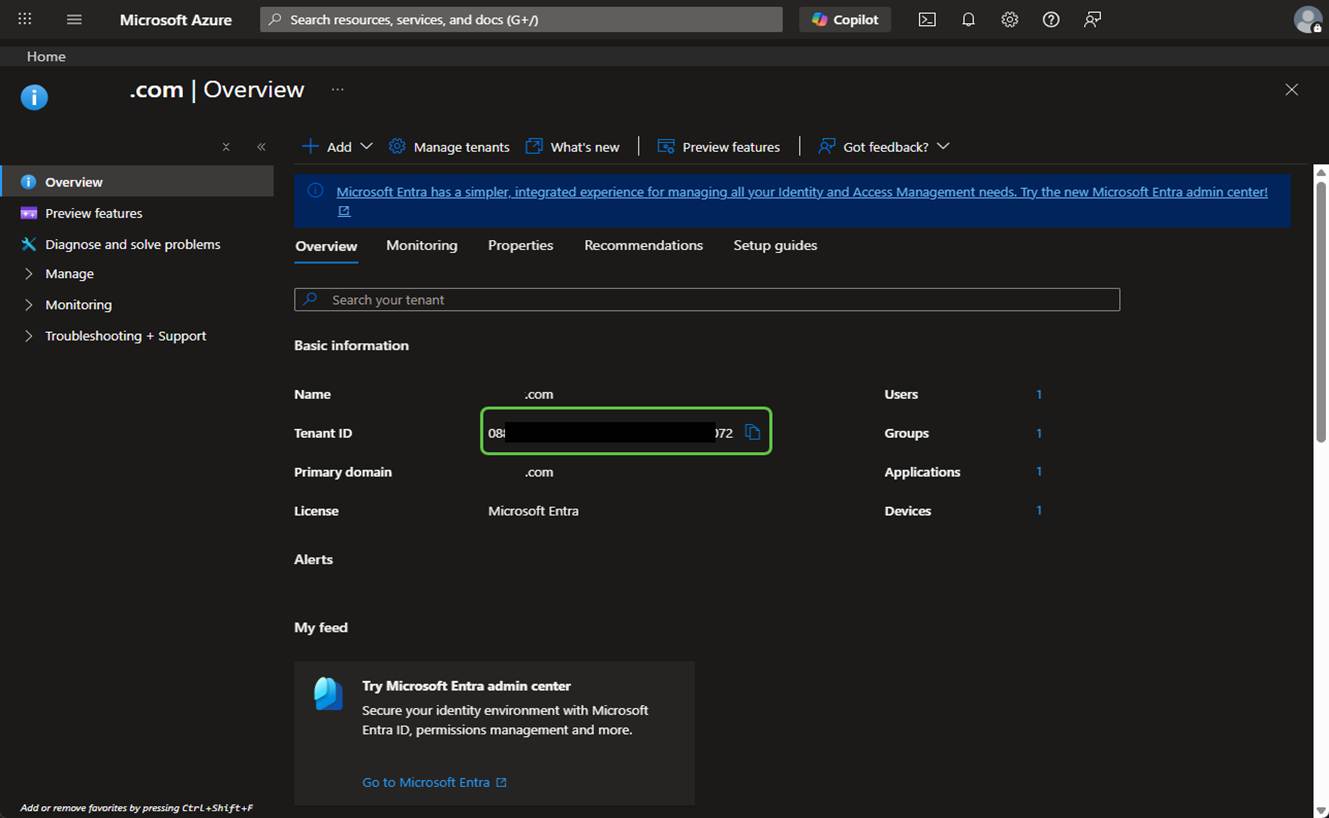
Figure 2. Tenant ID in Microsoft Entra ID Overview
Step 3 - Create or Identify Entra ID Groups
- Navigate to Groups in Microsoft Entra ID.
- Create new groups or select existing groups for Cigent Console access.
- Add the appropriate users to each group.
- Record the Object ID for each group that will be mapped in the Cigent Console.
Note: Group names may be chosen freely. The Object ID, not the display name, is the value required for configuration. |
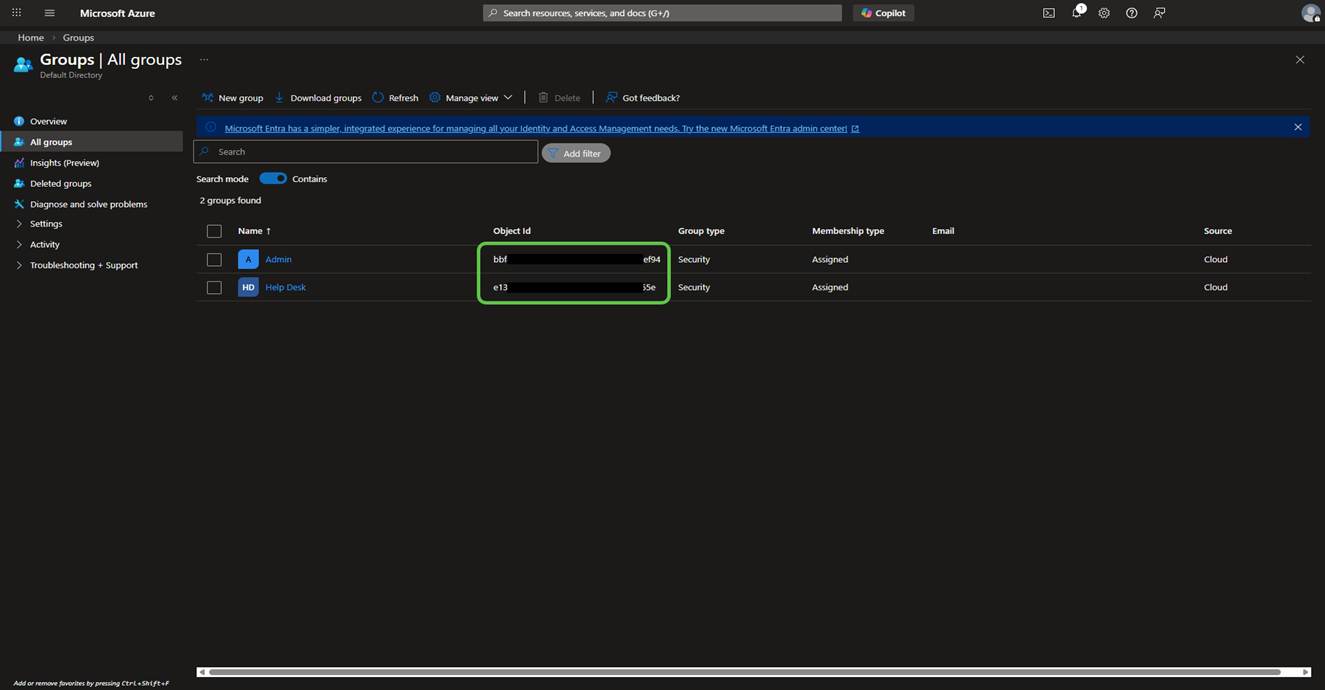
Figure 3. Example Entra ID group configuration and Object ID
Step 4 - Configure Entra ID Integration in the Cigent Console
- Log in to the Cigent Console as an administrator.
- Open the Integrations page from the navigation menu.
- Locate Microsoft Entra ID integration.
- Select Setup from the options menu (ellipsis).
Note: This step opens the console-side configuration for the identity provider connection. |
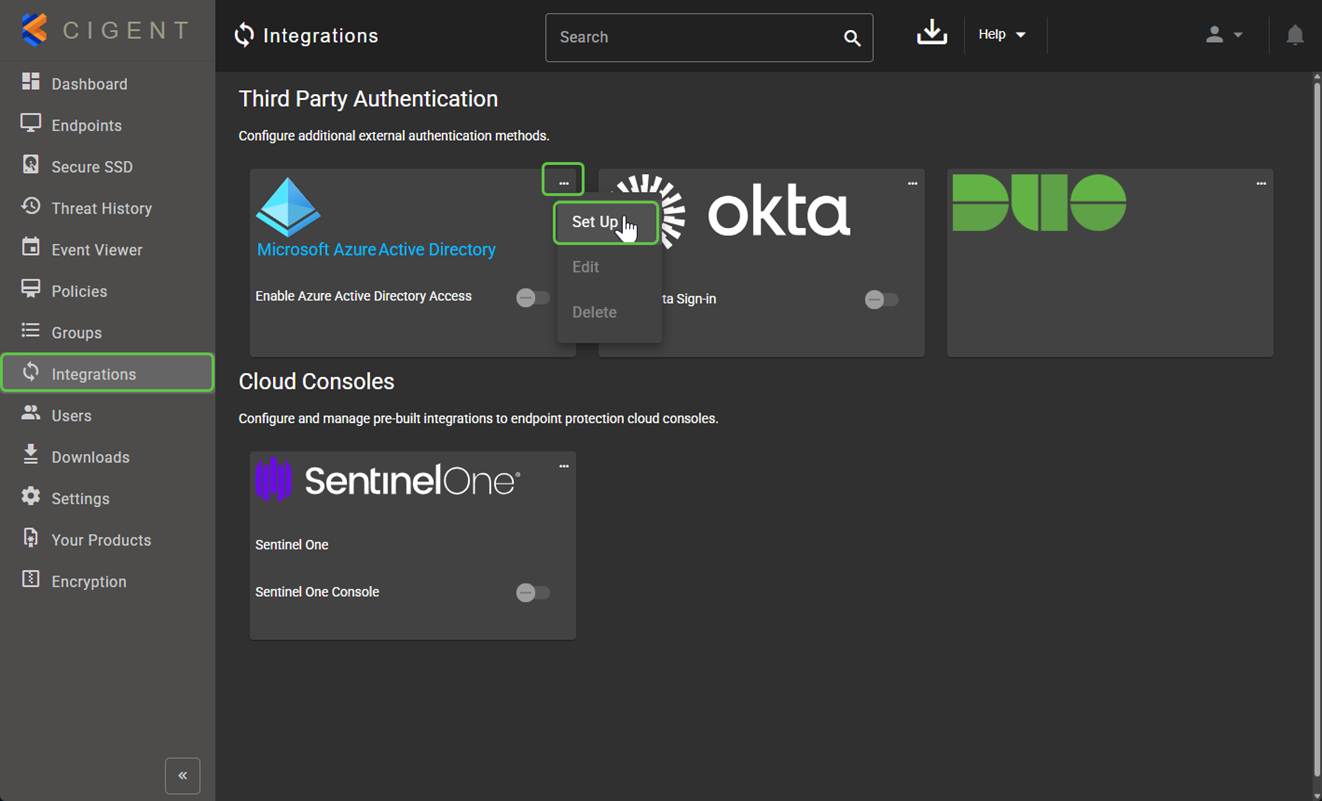
Figure 4. Microsoft Entra ID integration setup in Cigent Console
Step 5 - Enter Tenant and Group Information
- Enter the Tenant ID obtained from Microsoft Entra ID.
- Enter one or more Group Object IDs.
- Assign the appropriate Cigent Console role to each group mapping.
Note: Each group may be assigned a different role, enabling role-based access management through Entra ID group membership. |
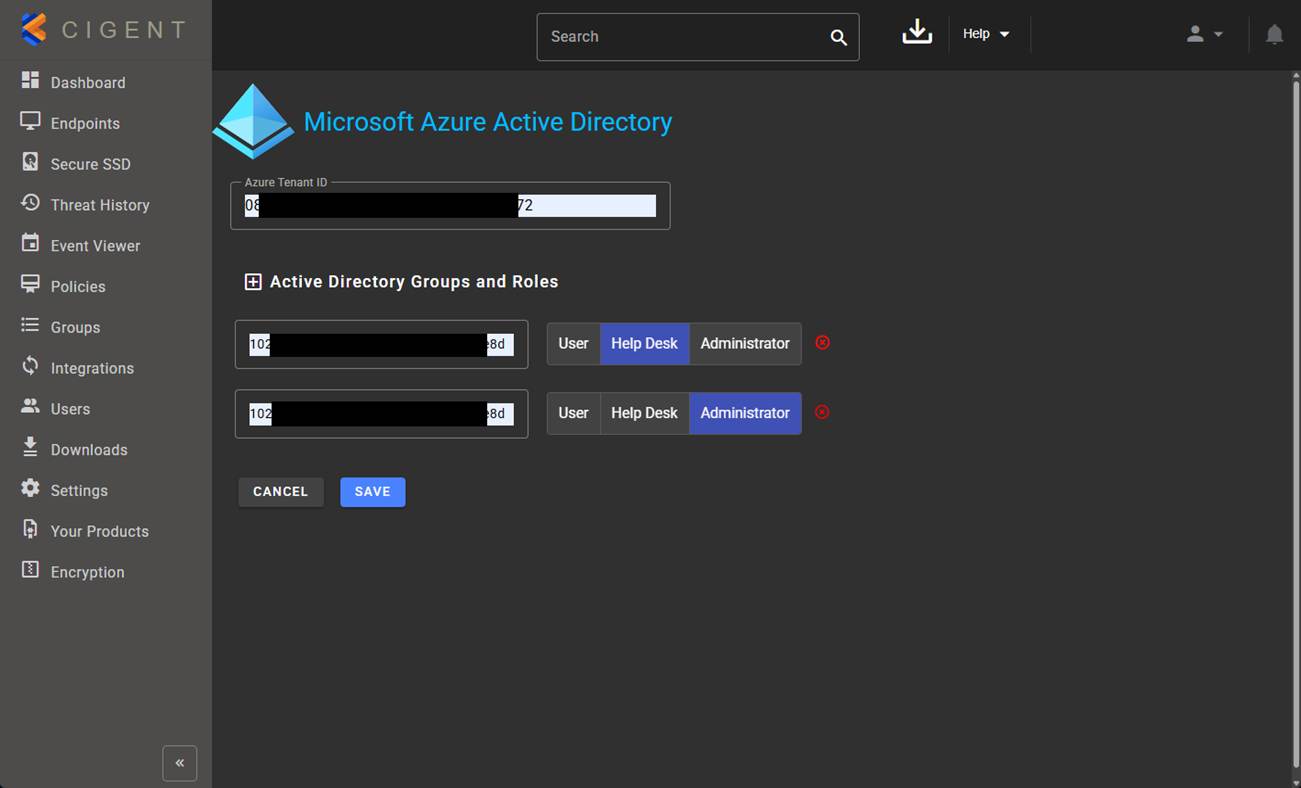
Figure 5. Tenant ID, group mapping, and role assignment
Step 6 - Test the Integration
- Navigate to the Cigent Console login page.
- Select Sign in with Microsoft.
- Authenticate using organizational Microsoft credentials.
- Confirm that the user is redirected back to the Cigent Console with the expected access level.
Note: If the user is already authenticated with Microsoft, sign-in may complete automatically without prompting for credentials again. |
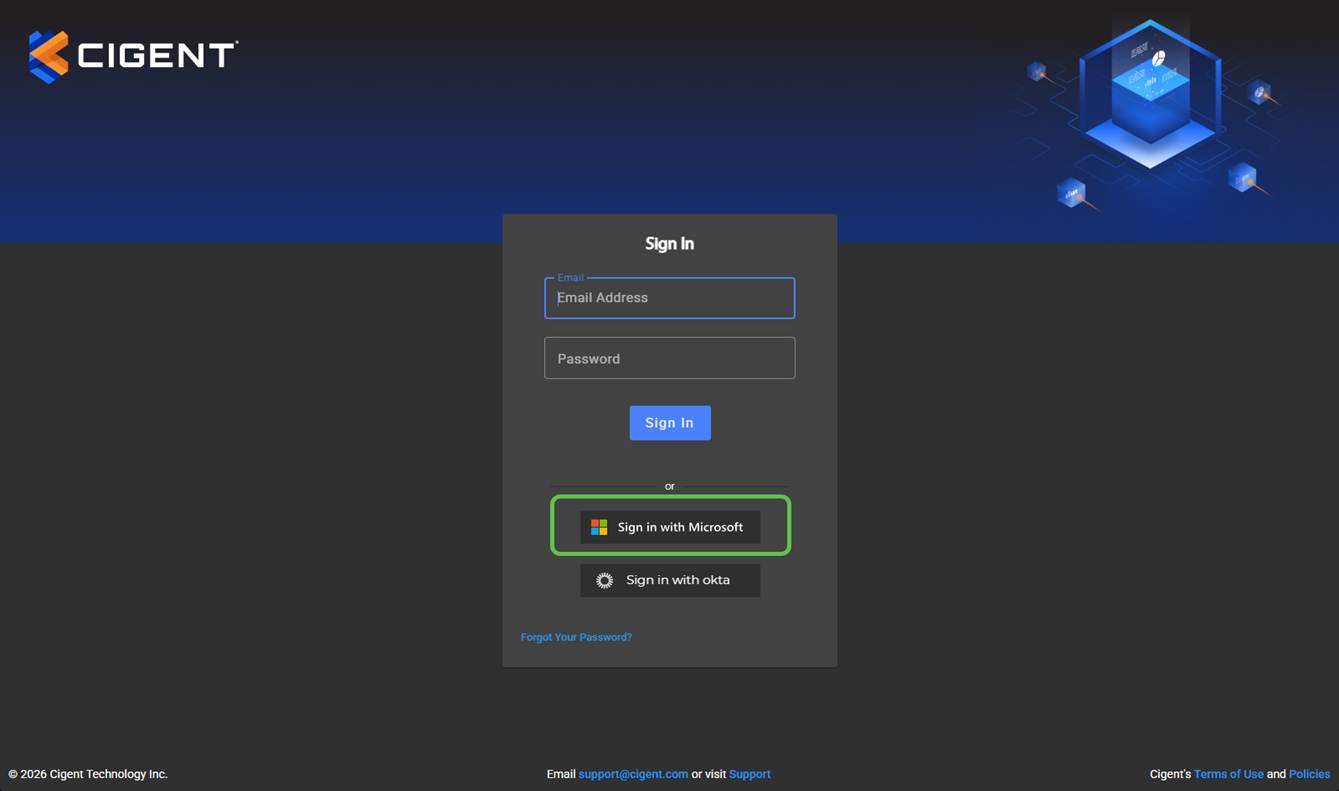
Figure 6. Microsoft sign-in flow from the Cigent Console login page
Result
After configuration is complete, users who are members of the mapped Entra ID groups can sign in to the Cigent Console using their Microsoft organizational accounts. Access can be managed through group membership in Entra ID rather than by maintaining individual console accounts.
Was this article helpful?
That’s Great!
Thank you for your feedback
Sorry! We couldn't be helpful
Thank you for your feedback
Feedback sent
We appreciate your effort and will try to fix the article