Overview:
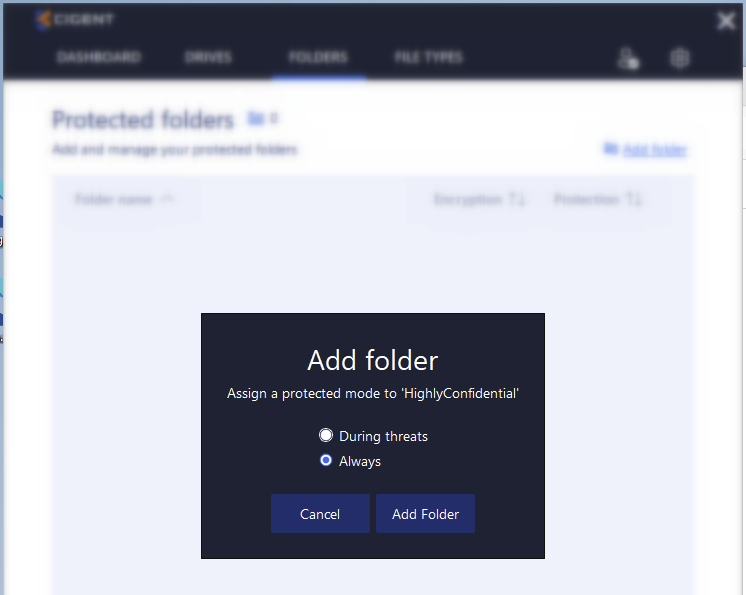
When you place a folder under protection of Data Defense, all files and sub-folders in that folder are protected at the same level of protection. There are two levels of protection available.
Always
- Authentication is required for each and every file access. ( In newer releases of Data Defense, the File Reauthentication Frequency setting allows for multiple files to be accessed per a single authentication if desired. )
During threats
- Authentication is required only when threat state is elevated.
Folders to be protected can be specified through the Data Defense Dashboard or through File Explorer convenience menu.
Using the Dashboard:
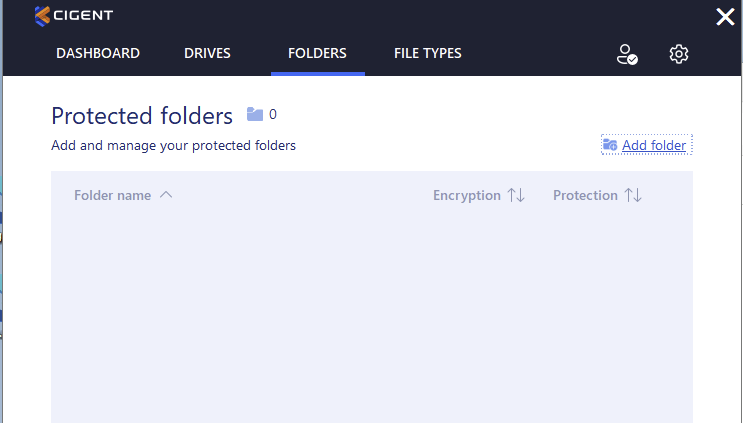
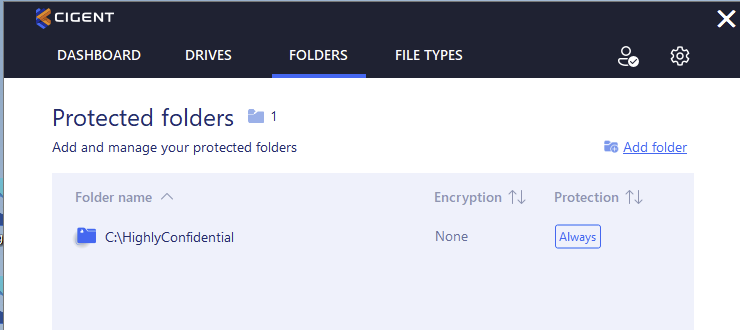
Open the Folders page in the dashboard click Add folder.
|
|
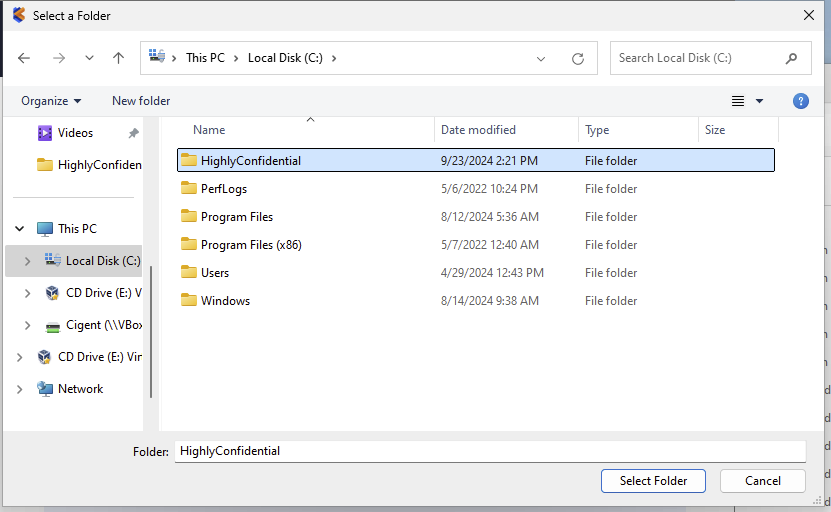
Navigate to the desired folder and click Select Folder
|
|
Choose the protection mode and click Add Folder |
|
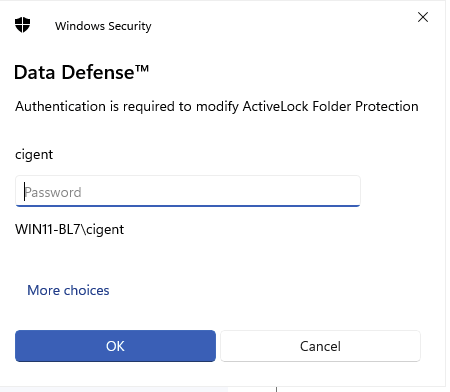
Authenticate using your chosen authentication method.
|
|
Your folder and its contents are now protected by Data Defense.
|
|
Using File Explorer:
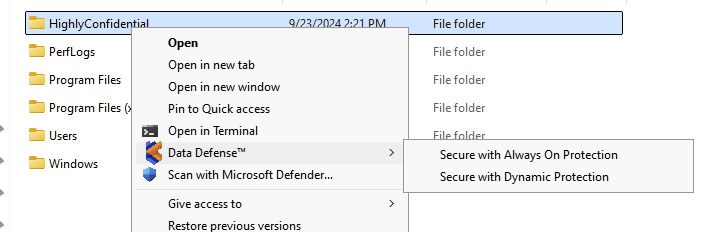
Open File Explorer and navigate to the folder you would like to protect. Right click on the folder and select the Data Defense. And then select the protection mode.
|
|
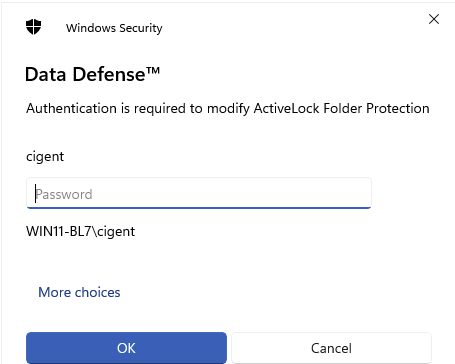
Authenticate using your chosen authentication method.
|
|
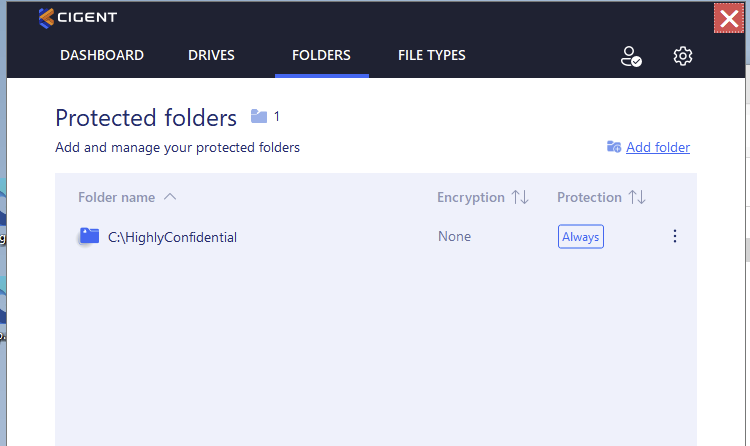
Your folder and its contents are protected by Data Defense.
|
|
|
|
Was this article helpful?
That’s Great!
Thank you for your feedback
Sorry! We couldn't be helpful
Thank you for your feedback
Feedback sent
We appreciate your effort and will try to fix the article