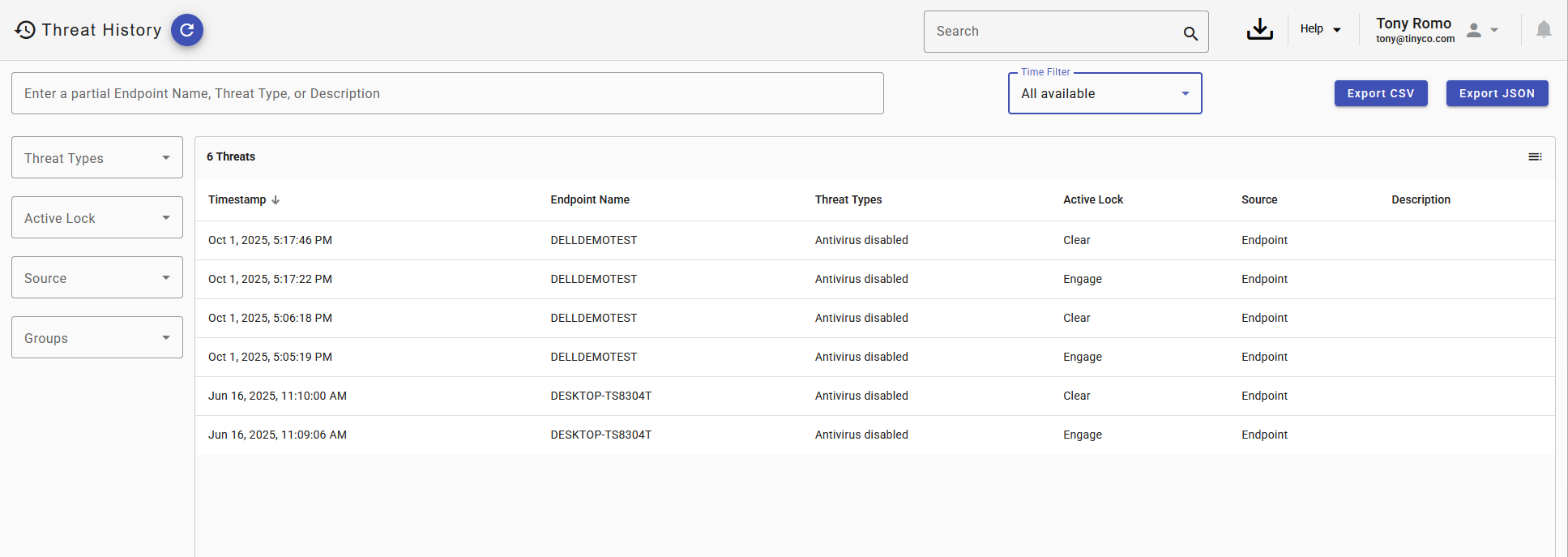
The Threat History page provides a centralized view of all detected threat activity originating from both Cigent security components and integrated third-party security sources. This information supports forensic analysis, security monitoring, reporting, and troubleshooting.
Each entry in the table represents a recorded threat event along with associated metadata such as source, type, timestamp, and status.
Search and Time Filtering
The Search field allows users to quickly locate specific threat records by entering a full or partial search string. The search applies across relevant fields within the threat history table.
The Time Filter enables users to adjust the time range for displayed events. This allows administrators to either expand the time window to review historical events or narrow the window to focus on recent activity.
Exporting Data
Threat data can be exported for further analysis or integration with external tools.
The following export formats are supported:
- Export CSV – Generates a comma-separated values file suitable for spreadsheet applications and general data analysis.
- Export JSON – Generates a structured JSON file designed for integration with third-party reporting platforms, automation pipelines, and SIEM systems.
These export options enable organizations to incorporate Cigent threat activity into their broader security monitoring and reporting workflows.
Threat Filtering
The filter panel on the left side of the page allows users to refine the displayed threat list based on several criteria. Available filters include:
- Threat Source – Filter by originating system or detection engine.
- Threat Type – Limit results to specific categories of threats.
- ActiveLock State – Display threats associated with particular ActiveLock conditions.
- Groups – Filter threats based on associated system or organizational groups.
Applying filters helps administrators isolate relevant events and focus on specific threat categories or affected systems.
Table Customization
The menu icon (hamburger menu) located in the upper-right corner of the threat table allows users to customize which columns are displayed.
Additional columns can be enabled to expose more detailed event metadata, allowing administrators to tailor the table view to their operational or investigative needs.
Was this article helpful?
That’s Great!
Thank you for your feedback
Sorry! We couldn't be helpful
Thank you for your feedback
Feedback sent
We appreciate your effort and will try to fix the article